Offer Services Contracts – Service Provider Signup Process
This is a new feature allowing the commissioner to create a contract for a service and have the service offered to all their providers. Each of the providers can then respond to the offer by accepting or declining the service.
These instructions will start from the contract creation part.
Contract Creation
- Click on the New Contract button.
- Place a tick in the Is this an offer contract?
- Enter the service name into the Contract Name.
- Click Next.
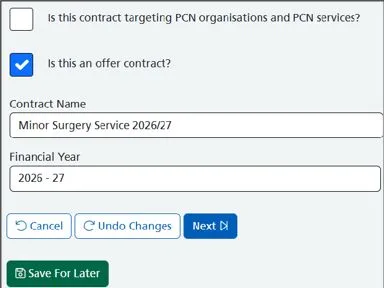
5. Click Next again, or click on the Services tab.
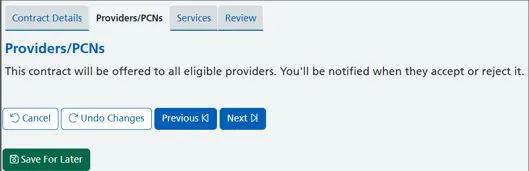
6. Locate your service from the service list and select all components (if applicable).
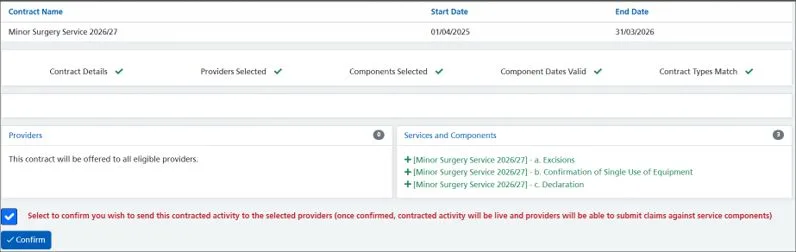
7. Click Next or click on the Review button.
8. Finally, place a tick to confirm and click on the Confirm button.
The providers will now be in receipt of this service offer.
You will then see a list of all your providers with a Pending status.
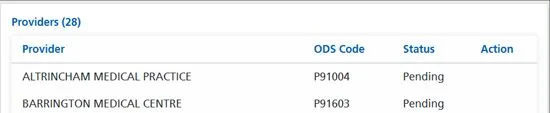
Provider can Accept/Decline.
GP Practices can follow the instructions from this point.
- From your home page, click on the Services menu tile.
2. Click on the View button.
The contract status is: Pending.

3. Click on the Accept service offer button. If, as a practice, you won’t be participating in this service or feel that you may have been offered it by mistake, click on the Reject button.
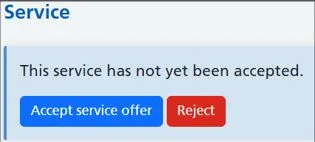
The contract status is: Active.
Provider’s response shown to commissioner:
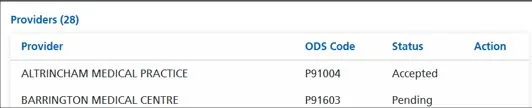
Within your contracts page, you will see the total number of providers who have accepted the service – the number will be displayed underneath the Providers column.
- Click on the View button

Here we can see that one provider has accepted and the other is in pending.
If the provider rejects by mistake, they can request the commissioner to reissue the offer.
- From your Services page, click on the View button underneath Action.
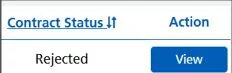
Click on the Request this service from the commissioner button.

Commissioner re-issues the service.
At this point, the Commissioner will need to reissue the service.
- Click on the Reissue button.
The provider should then accept the service, and the status will change to Accepted.

Version 1.0 April 2026