Adjusting manually submitted data in CQRS National
There may be occasions when the data submitted by a Service Provider during the Achievement declaration process may need to be updated. For example, data required for Quality and Productivity Indicators cannot be accessed from a GP system, and so may need to be manually adjusted throughout the financial year if the Service Provider’s situation or ability to meet required contractor obligations changes.
Manually submitted data can be adjusted by either a Service Provider or a Commissioning Organisation on its behalf.
Service Providers may update manually submitted data, providing:
- Achievement data has not been approved by a Commissioning Organisation
- Achievement data has been originally manually submitted and not received via automatic extraction
- The achievement date chosen to update manually submitted data falls within the permitted time to amend and submit data
- The achievement data has not been set as a Commissioning Organisation entry
Commissioning Organisations may adjust manually submitted data on behalf of a Service Provider, providing a payment declaration has not been financially approved.
This job aid is aimed at Service Providers and Commissioning Organisations with the role of ‘Achievement Entry’ who need to make these manual adjustments.
Note: The data that appears in this job aid is for training purposes only and does not represent actual data.
Steps to take when a Service Provider or Commissioning Organisation needs to adjust manually submitted data
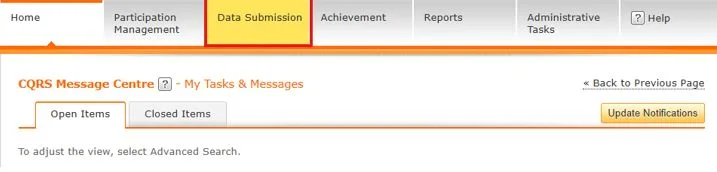
- For both Service Providers and Commissioning Organisations, from the CQRS National Home screen, click the Data Submission tab.
2. For Commissioning Organisations, select the Service Provider Name link you wish to adjust manually submitted data for that appears under the Record Provider Achievement tab. Service Providers do not view this page and will continue their user action at step 3 below.
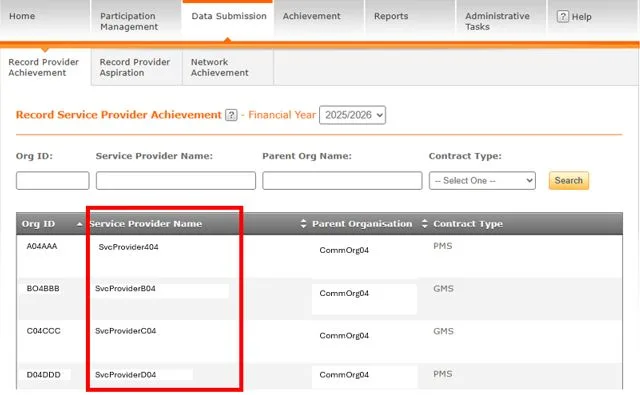
Note: The Record Service Provider Achievement page refreshes to display services specific to the selected Service Provider.
3. For both Service Providers and Commissioning Organisations, in the Quality Service drop-down, select the Quality Service to be adjusted
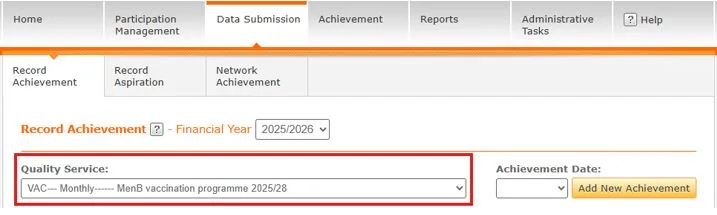
Note: The achievement panel below the selected Quality Service shows all achievements recorded against the chosen service.
4. Select the achievement date you wish to adjust.
Note: You can select the Achievement date to be adjusted by selecting the date in the Achievement Date table.
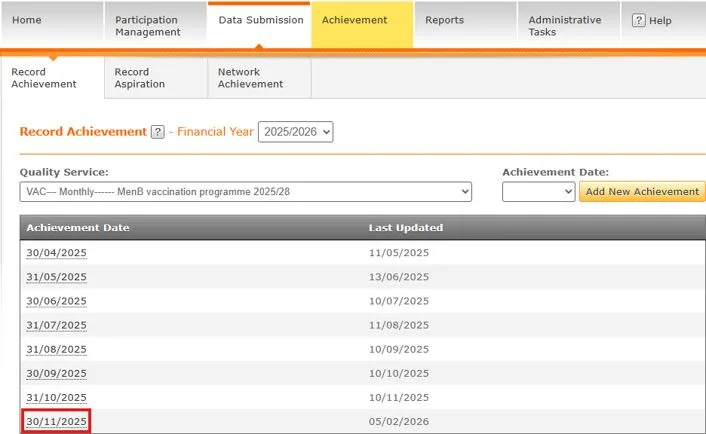
All sub-domains within the chosen service achievements are displayed, along with submitted and manually entered indicators.

5. Select the Indicator Group to be adjusted.
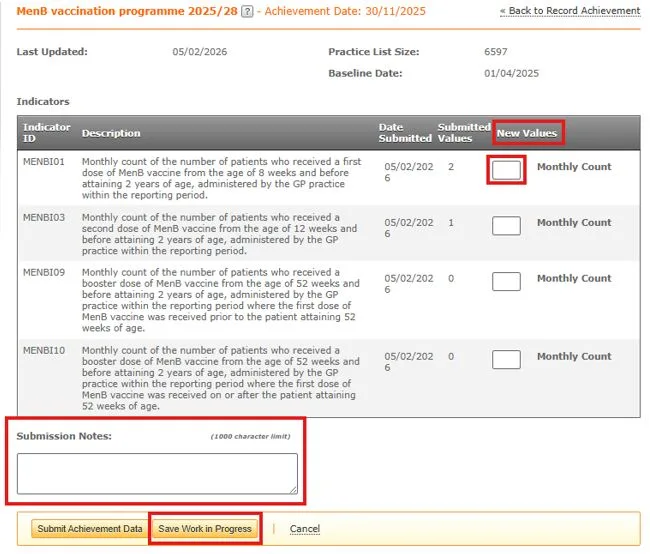
6. In the New Values field, enter the new achievement values.
Note: The available fields and values that can be adjusted will depend on the Quality Service and Indicator Group on view.
After making the necessary adjustments, you may enter submission notes specific to that submission in the Submission Notes field.
You can save the updated achievement data as work in progress without submitting the data and triggering calculations. Data is stored as work in progress if the data are different from the previous submission or if there was no previous submission.
You can submit the updated achievement data if the data are different from the previous submission or if there is no previous submission
7. Click the Submit Achievement Data button
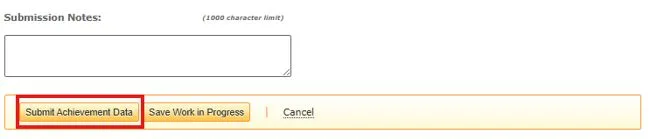
CQRS displays a confirmation message that the achievement data has been successfully submitted.

Note: In the case of a Commissioning Organisation adjusting manually submitted data on behalf of a Service Provider, CQRS will return the newly modified achievement to the Service Provider, where it will appear as a new task. The Service Provider must then process this through the Achievement Declaration process.