This guide walks through functionality in CQRS for the Network Contract DES (NCD) service that ensures that any declarations reflect the most up-to-date achievement figures, even if changes occur after an initial declaration request. These updates ensure accuracy and clarity when:
A practice joins or leaves a PCN (Primary Care Network)
Data is amended at indicator level
Topics Covered
Updated Achievement After Re-calculation
What users will see when achievement values need to be recalculated
2. Practice Joins or Leaves a PCN After Calculation
What users will see when a practice has joined or left a PCN after the calculation has been run.
3. Payment Declaration Following Financial Approval
What users will see once payment declarations have been financially approved.
1. Updated Achievement After Re-calculation
Payment declaration requested – Achievement data awaiting reaggregation
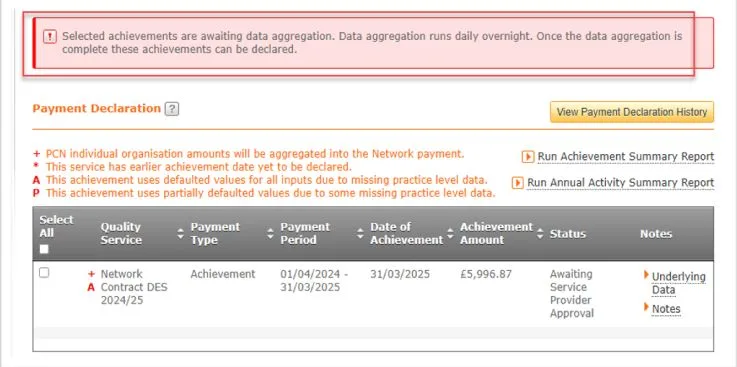
If the Service Provider user clicks the Declare Achievement button but there is achievement waiting to be aggregated the below message is returned.
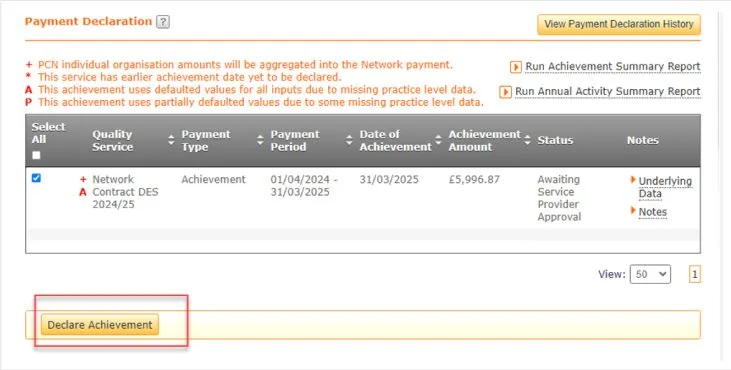
An achievement is available to declare
Message returned when achievement is awaiting aggregation
Note: Data reaggregation runs daily overnight to ensure that achievement data cannot be declared based on incorrect values until all the data, including the new submitted values, have been reaggregated.
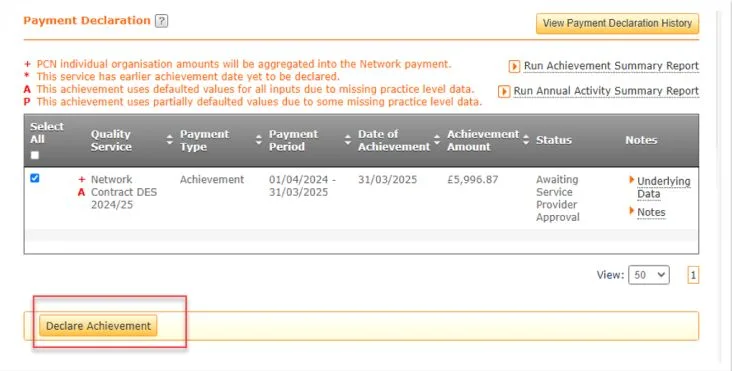
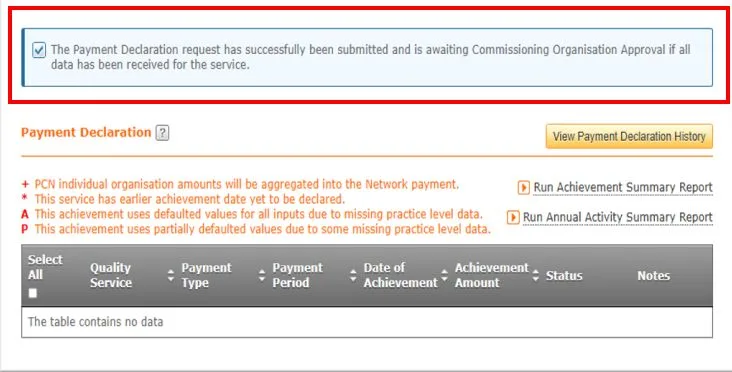
If achievement was recalculated overnight due to changes, the achievement will revert back to Awaiting Service Provider Approval and can then be re-declared by the PCN and the status will then move to Awaiting Commissioning Organisation Approval.
An achievement is available to declare
Achievement successfully moved to Awaiting Organisation Approval
Note: Data reaggregation runs daily overnight to ensure that achievement data cannot be declared based on incorrect values until all the data, including the new submitted values, have been reaggregated.
Payment declaration requested- For multiple achievements, though one or more are still pending data aggregation
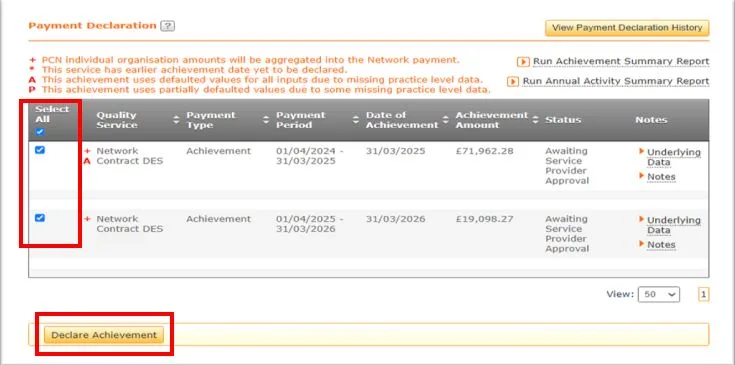
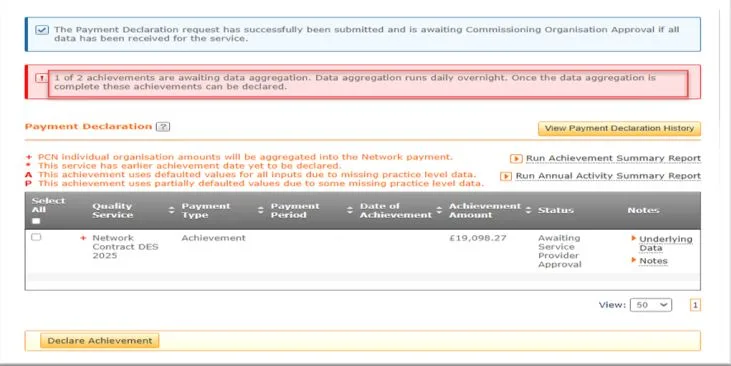
If declaration is attempted for multiple achievements but one or more of those achievements are awaiting aggregation the below message will be displayed.
Multiple achievements have been ticked to declare
Error message shown when Declare Achievement is clicked
Note: Data reaggregation runs daily overnight to ensure that achievement data cannot be declared based on incorrect values until all the data, including the new submitted values, have been reaggregated.
2. Practice Joins or Leaves a PCN After Calculation
Payment Declaration On Hold – Payment Declaration History
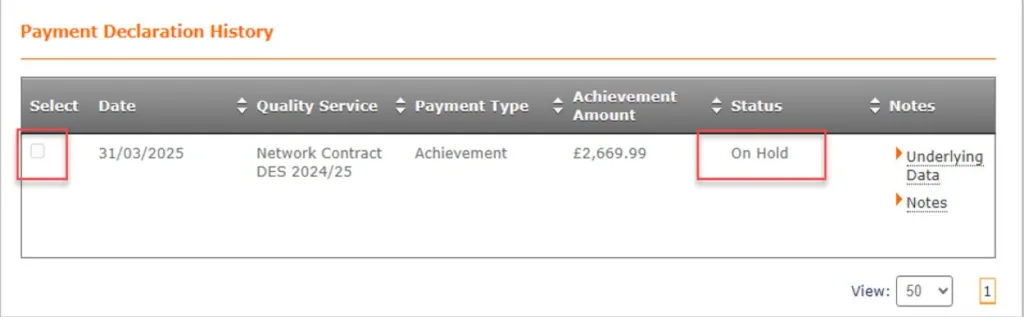
If a practice has joined or left a PCN, the associated payment declaration will be placed ‘On Hold’ automatically by the system. Users can view the ‘On Hold’ status by navigating to the Achievement tab and selecting View Payment Declaration History on CQRS.
Achievement is On Hold
Payment declaration On Hold – Practice Joins a PCN
If a practice joins a PCN and an attempt is made to remove the hold on achievement, the following message will appear:
Message displayed confirming achievement is to be taken off hold
If the Commissioner determines that the achievement figures are accurate and do not require recalculation, the hold may be lifted. The declaration process can then proceed as usual.
Note: Data reaggregation runs daily overnight to ensure that achievement data cannot be declared based on incorrect values until all the data, including the new submitted values, have been reaggregated.
Payment declaration On Hold – Practice leaves a PCN
If a practice leaves a PCN and an attempt is made to remove the hold on achievement, the following message will appear prior to reaggregation:
Message displayed confirming achievement cannot be taken off hold
Note: Data reaggregation runs daily overnight to ensure that achievement data cannot be declared based on incorrect values until all the data, including the new submitted values, have been reaggregated.
3. Payment Declaration Following Financial Approval
Off-System resolution required where Payment declaration has been financially approved and a Practice leaves or joins a PCN
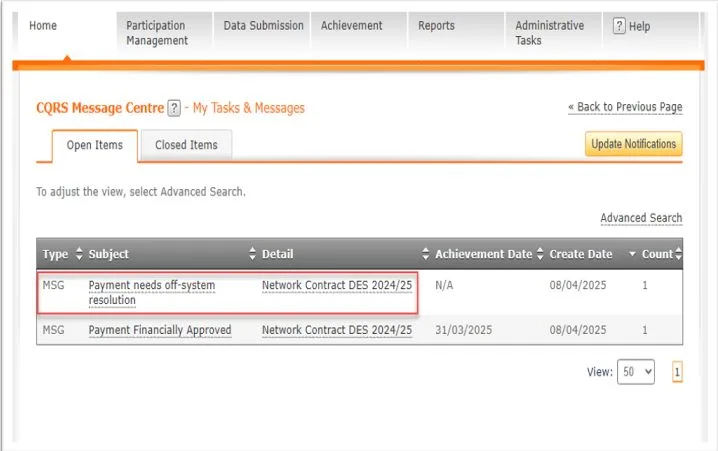
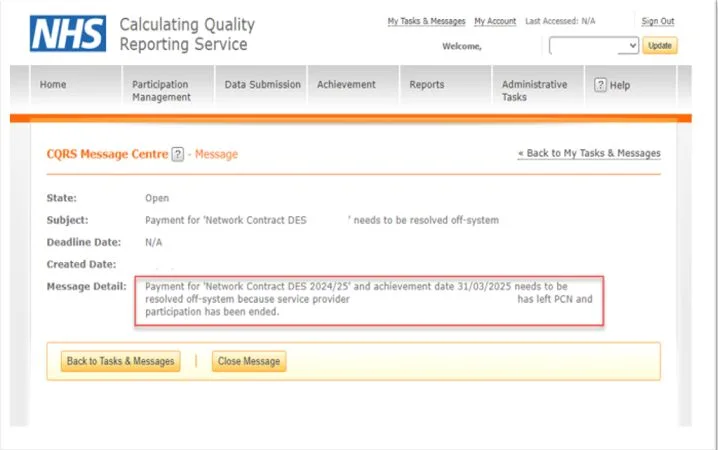
If Payment declaration has been financially approved a Practice leaves and/or joins a PCN, the below messages are displayed on the CQRS message centre that the payment requires an off-system resolution.
Notification regarding off system payment required
Message detail when notification is clicked
Non-urgent advice: Need help?
If you need help with CQRS, you can log a call with the service desk. Please email: support@cqrs.co.uk or call 0330 124 4039.
At the end of each payment period, a provisional payment is calculated by CQRS based on the data submitted by you in your capacity as a Service Provider.
To be sure payments are accurate, they are reviewed and agreed by the Service Provider and Commissioning Organisation before being paid.
Current achievement for each Quality Service in which you are participating can be viewed and reviewed from the Achievement Results sub-tab.
This job aid is aimed at Service Providers with the role of ‘Declaration Management’ who declare Quality Services for payment.
Note: The data that appears in this job aid is for training purposes only and does not represent actual data.
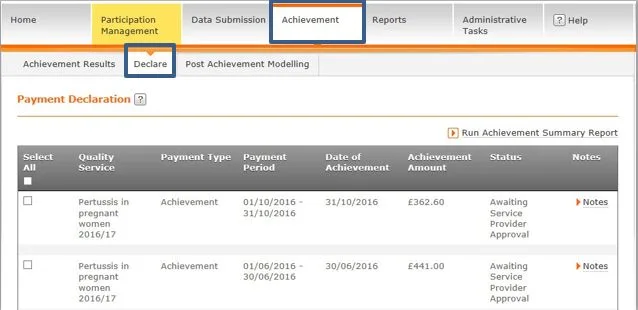
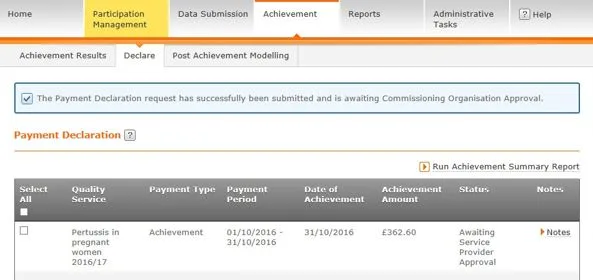
From the CQRS Achievement screen, select the Declare sub-tab.
If a payment declaration is awaiting Service Provider approval, you may update the Notes field and/or approve the payment declaration.
Some payment configurations may be designated as No Declaration Required, which automatically approves the payment declaration without action by you. Configurations may also be designated as No Approval Required, which automatically approves the payment declaration without action by the Commissioning Organisation.
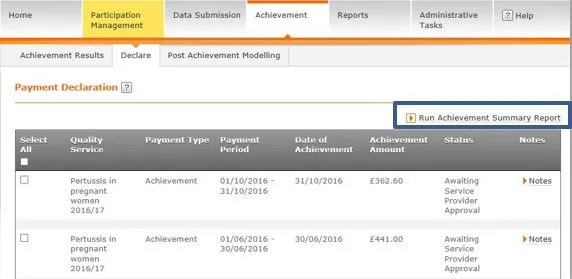
2. If required, details of the declaration can be generated by selecting the Run Achievement Summary Report link in the upper right corner of the screen.
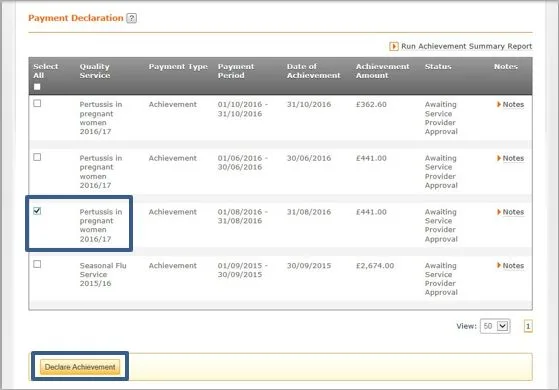
3. To declare the achievement, select the checkbox to the left of the relevant Quality Service.
4. Select the Declare Achievement button.
5. A confirmation message displays to confirm that the payment declaration request has been successfully submitted and is awaiting approval by the Commissioning Organisation.
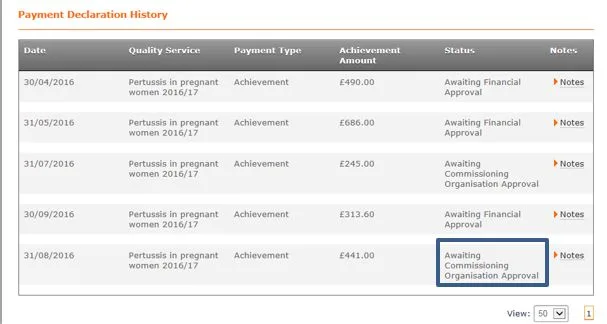
NOTE: The newly declared achievement moves to the Payment Declaration History panel at the bottom of the screen with a status of “Awaiting Commissioning Organisation Approval.” Notification of the declaration is transmitted to the Commissioning Organisation. They will review and, if appropriate, approve the achievement.
Non-urgent advice: Need help?
If you need help with CQRS, you can log a call with the service desk. Please email: support@cqrs.co.uk or call 0330 124 4039.
At the end of each payment period, a provisional payment is calculated from the submitted achievement data. To be sure the payments are accurate, they are reviewed and agreed upon by the Service Provider and Commissioning Organisation before being paid.
Once approved and submitted by the Service Provider, you will receive a task notification on the Home screen of CQRS and by email (based on your notification preferences) that the achievement and payment declaration is available for approval or finance approval.
This job aid is aimed at Commissioning Organisations with the role of ‘Approval Management’ and/or ‘Finance Management’ who approve final achievement and payment declarations.
Note: The data that appears in this job aid is for training purposes only and does not represent actual data.
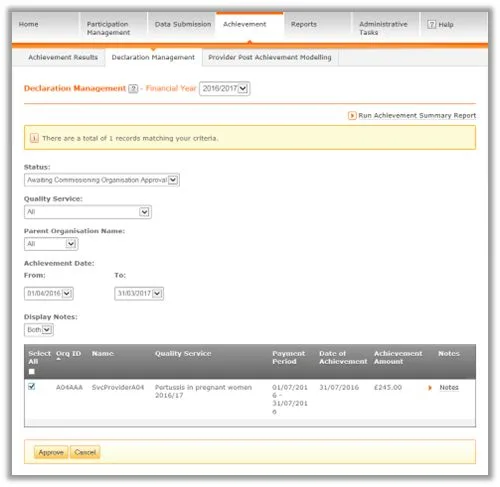
From the CQRS Home screen, select the Achievement tab.
Select the Declaration Management sub-tab.
NOTE: If the Quality Service to be approved is not displayed, the Status and/or Quality Service filters can be used to manipulate which Quality Services are displayed.
3. Locate the required Quality Service and select the checkbox next to it. You may approve multiple achievements by selecting the relevant checkboxes or approve all the Quality Services by selecting the Select All checkbox.
4. Select the Approve button.
5. CQRS displays a confirmation message that the payment declaration has been successfully approved.
Non-urgent advice: Need help?
If you need help with CQRS, you can log a call with the service desk. Please email: support@cqrs.co.uk or call 0330 124 4039.
Most achievement data within CQRS are extracted automatically from GP clinical systems. However, data can be entered manually in the following instances:
The Service Provider does not support automatic extracts.
The Service Provider’s clinical system does not support automatic extracts for the Quality Service(s).
The Quality Service achievement data cannot be manually extracted.
There is a technical issue that prevents automatic extracts.
This job aid is aimed at Service Providers with the role of ‘Achievement Entry’ who input achievement data manually.
Note: The data that appears in this job aid is for training purposes only and does not represent actual data.
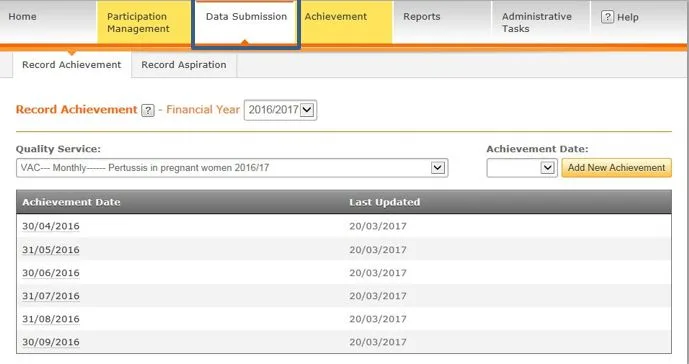
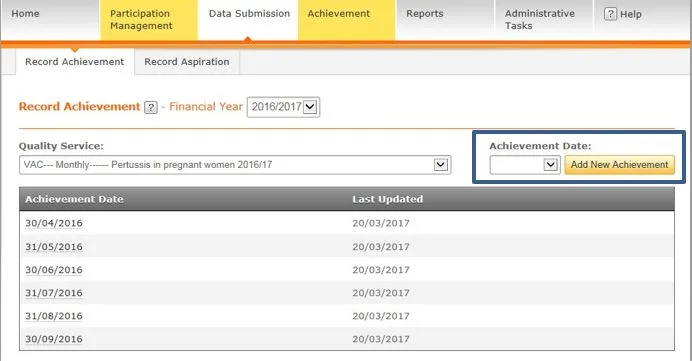
From the CQRS Home screen, select the Data Submission tab.
NOTE: The Record Achievement screen displays. You can filter on any combination of Financial Year and Quality Service in order to view the service against which you wish to enter data.
2. Having located the required service, select the Achievement Date drop-down. This displays a list of valid submission dates for the selected service.
3. Select the date you are making a submission for and select the Add New Achievement button.
NOTE: Achievement Dates highlighted yellow indicate a payment date.
4. CQRS displays a summary of all Indicator Groups within your chosen service
5. Select the Indicator Group against which you wish to input data. (If you are inputting the QOF25/26 QI Indicators you will need to select the Quality Improvement Group within the QOF25/26 service)
6. The selected Indicator Group details are displayed.
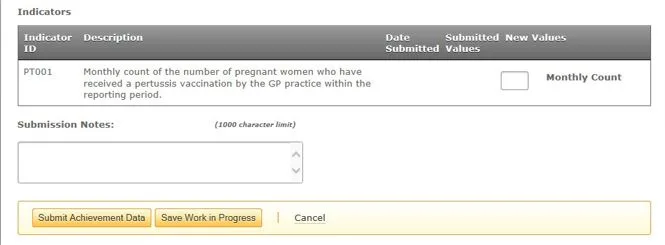
7. By selecting the available fields, you can add new achievement data against submission dates and values at a group and indicator level.
Once you have entered the necessary data, you have the choice of saving the achievement as work in progress (allowing you to return later to add or update it) or submitting the data and triggering calculations.
8. Select either the Submit Achievement Data or Save Work in Progress button.
9. Depending on your choice, CQRS will display confirmation that the achievement has been saved as work in progress or that it has been successfully submitted.
Non-urgent advice: Need help?
If you need help with CQRS, you can log a call with the service desk. Please email: support@cqrs.co.uk or call 0330 124 4039.