Once a Service Provider Cluster is created, you may remove organisations from the cluster. This job aid will review the steps for that task.
This job aid is aimed at users within a Commissioning Organisation with the role of Organisation Administrator.
Note: The data that appears in this job aid is for training purposes only and does not represent actual data.
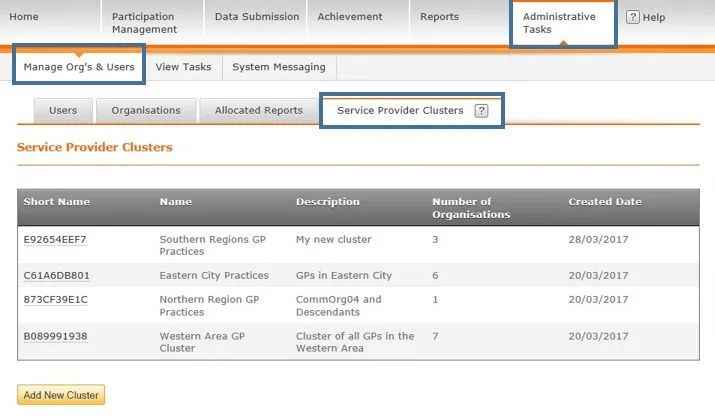
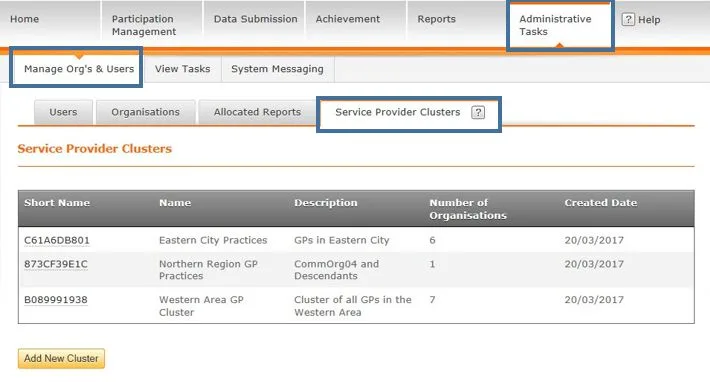
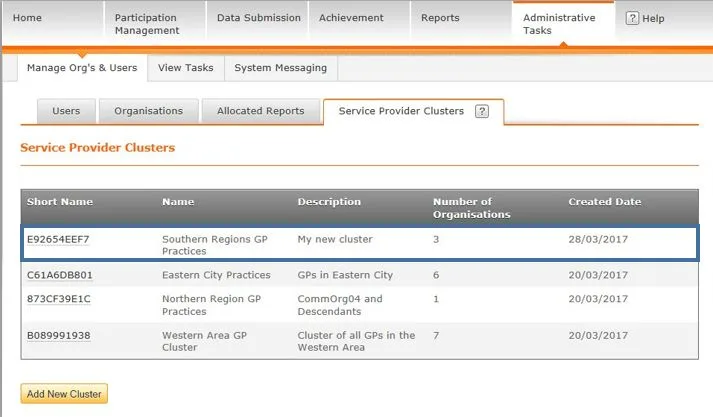
From the CQRS Home screen, select the Administrative Tasks tab, then select the Manage Org’s & Users sub-tab, and then select the Service Provider Clusters sub-tab
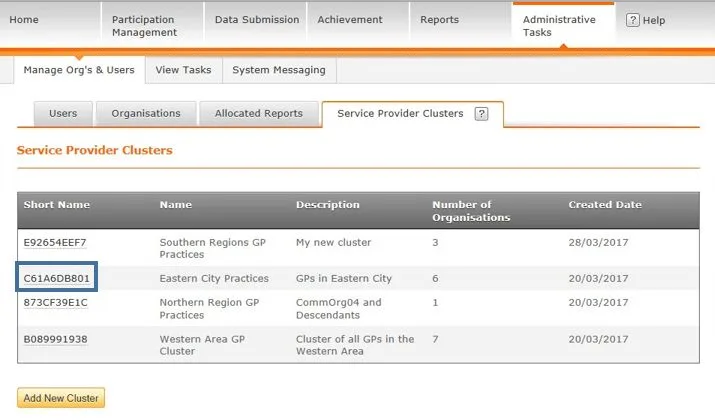
2. Click the Short Name of the Service Provider Cluster to update.
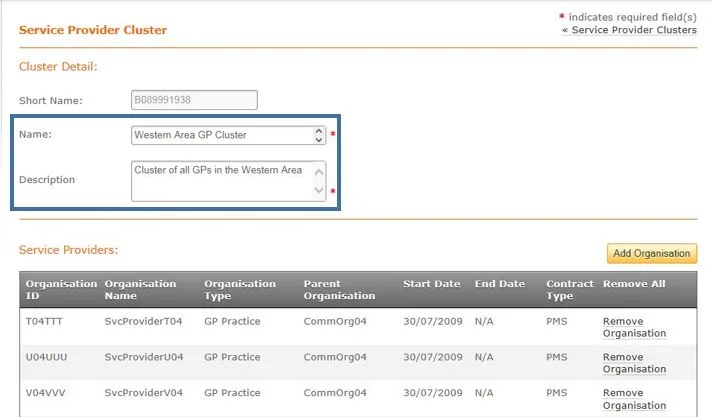
The Service Provider Cluster screen displays. Scroll down to view the Service Providers section.
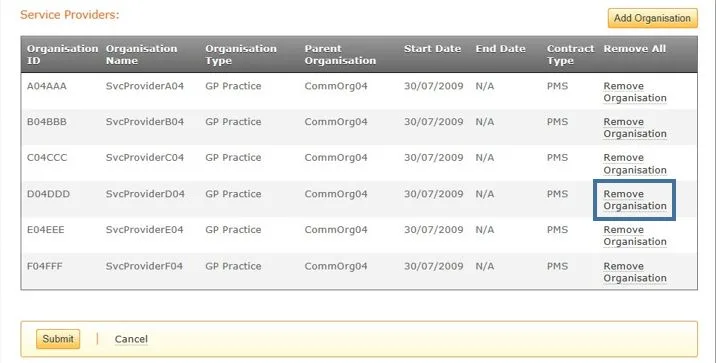
3. Click the Remove Organisation link for the organisation you want to remove.
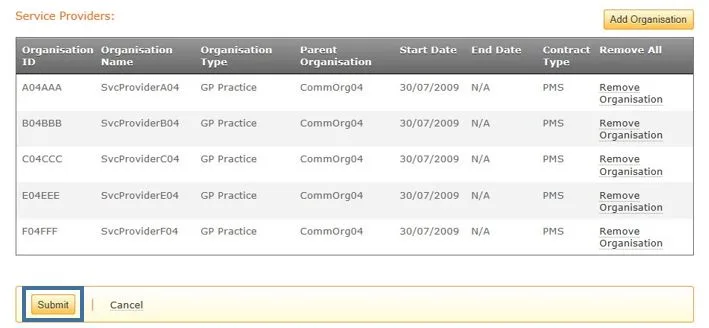
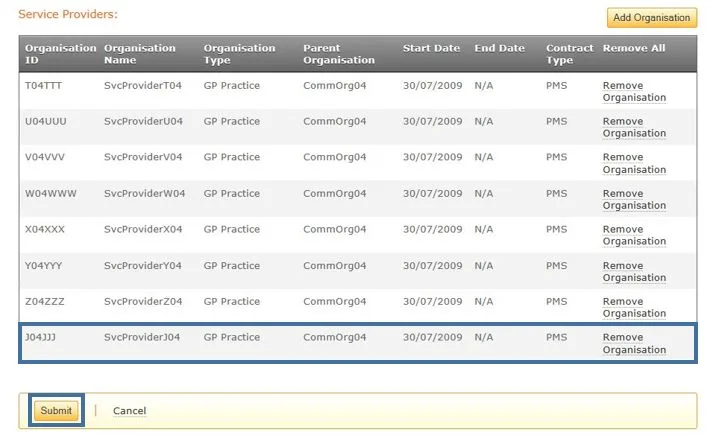
The Service Providers list updates to show the selected service provider will no longer be included in this cluster.
4. Once all updates have been made, you must click the Submit button at the bottom of the page to commit your changes.
A confirmation message indicates the cluster was updated successfully.
Non-urgent advice: Need help?
If you need help with CQRS, you can log a call with the service desk. Please email: support@cqrs.co.uk or call 0330 124 4039.
A user may be further restricted to specific organisations under a parent organisation through Service Provider Clusters. When a user is assigned to cluster, they may only access organisations listed in the cluster along with the organisations descendants if applicable.
This job aid is aimed at users within a Commissioning Organisation with the role of Organisation Administrator.
Note: The data that appears in this job aid is for training purposes only and does not represent actual data.
From the CQRS Home screen, select the Administrative Tasks tab, then select the Manage Org’s & Users sub-tab, and then select the Service Provider Clusters sub-tab.
2. Click the Add New Cluster button at the bottom of the primary Service Provider Cluster screen.
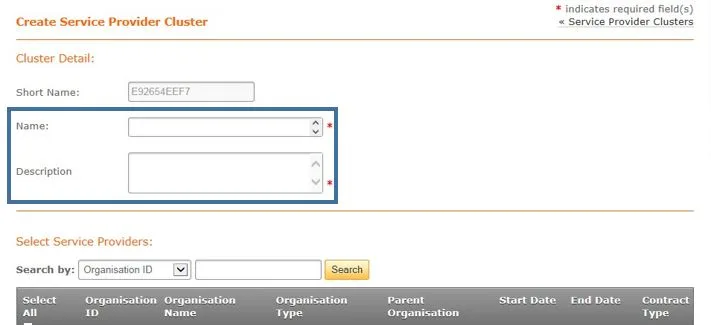
3. On the Create Service Provider Cluster screen, enter a Name and Description for the Cluster. NOTE: Ensure the name is unique and descriptive for the cluster so it is easily recognised.
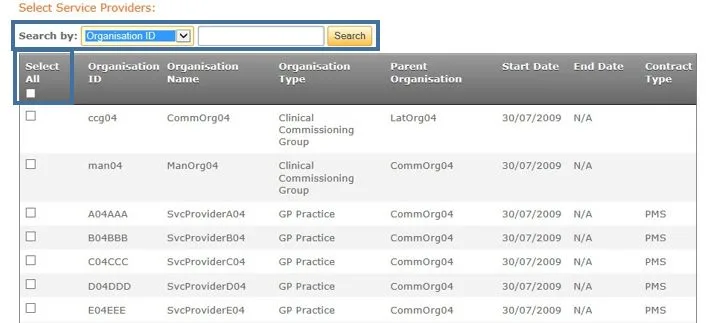
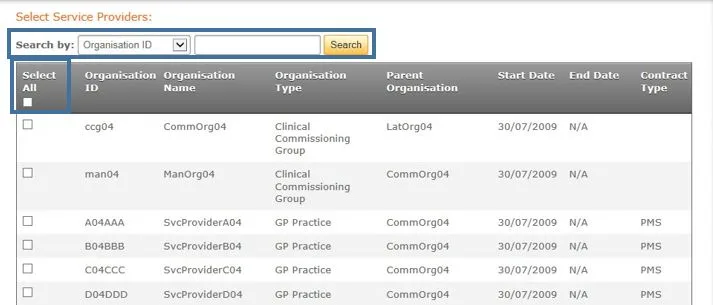
4. Add organisations to the cluster by selecting the organisation’s corresponding checkbox. You may select all organisations by using the Select All checkbox. To filter Service Providers, use the Search by function.
5. Once you have selected the Service Providers, click the Continue button on the bottom of the page.
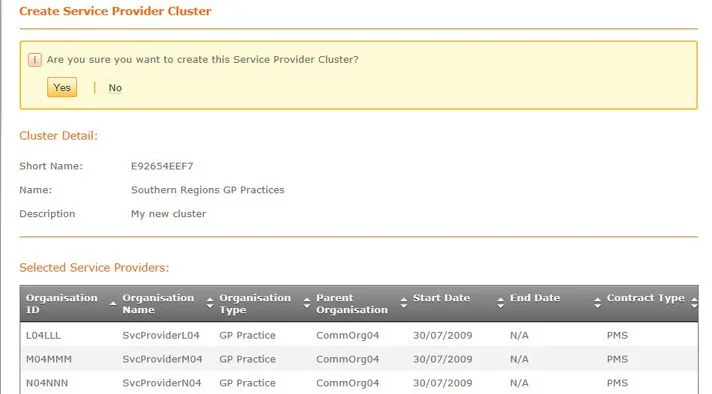
A summary screen will display listing the cluster details and the associated service providers.
6. Using the confirmation box at the top of the page, select Yes to create the service offer or No to return to the Create Service Provider Cluster page.
7. A final confirmation will display. Through the confirmation message, you may return to the primary Service Provider Cluster screen by clicking the View Service Provider Clusters link, or you may create another cluster by clicking the create a new Service Provider Cluster link.
8. When you return to the primary Service Provider Cluster screen, the new cluster will be listed.
Non-urgent advice: Need help?
If you need help with CQRS, you can log a call with the service desk. Please email: support@cqrs.co.uk or call 0330 124 4039.
Once a Service Provider Cluster is created, you may add additional organisations to the cluster. This job aid will review the steps for that task.
This job aid is aimed at users within a Commissioning Organisation with the role of Organisation Administrator.
Note: The data that appears in this job aid is for training purposes only and does not represent actual data.
From the CQRS Home screen, select the Administrative Tasks tab, then select the Manage Org’s & Users sub-tab, and then select the Service Provider Clusters sub-tab.
2. Click the Short Name of the Service Provider Cluster to update.
3. On the Service Provider Cluster screen, you may modify the Name and/or the Description for the Cluster. The Short Name is system-defined and cannot be updated.
4. To add an organisation, click the Add Organisation button.
5. You may add an organisation to the cluster by selecting the organisation’s corresponding checkbox. You may select all organisations by using the Select All checkbox. To filter Service Providers, use the Search by function.
6. Once you have selected the Service Provider(s) to add to the cluster, click the Continue button on the bottom of the page.
Once the organisation(s) is added, you will be transferred back to the Cluster Detail screen. The newly added organisation(s) will be listed in the Service Providers section.
Click the Submit button to save your changes.
A confirmation message indicates the cluster was updated successfully.
Non-urgent advice: Need help?
If you need help with CQRS, you can log a call with the service desk. Please email: support@cqrs.co.uk or call 0330 124 4039.