Add or remove a CQRS user and assign a role in CQRS National

CQRS users are created or removed from the system by a CQRS User Administrator or an Advanced User Administrator.

Creating a new user is a two-stage process and requires you to 1) create the user account and 2) specify an associated organisation(s) and role(s) within the organisation(s).

A CQRS user cannot be deleted from the system. Removal involves revoking links to one or more organisations with which the user is associated. This is useful when a user is transferring between or leaving an organisation. If the user will no longer need to use CQRS, you can disable their CQRS user access.

This job aid describes the steps required to add or remove CQRS users. It also describes linking or unlinking organisations and disabling a user account.

Note: The data that appears in this job aid is for training purposes only and does not represent actual data.

Adding a New User

  1. From the CQRS Home screen, select the Administrative Tasks tab.
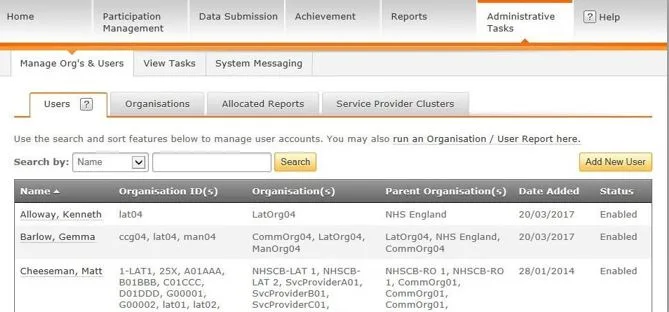
Screenshot from CQRS National showing Administrative Tasks tab

NOTE: CQRS displays current users, their organisation and the date they were added.

2. Select the Add New User button.

3. Select the Email Address field. Enter the email address associated with the new user.
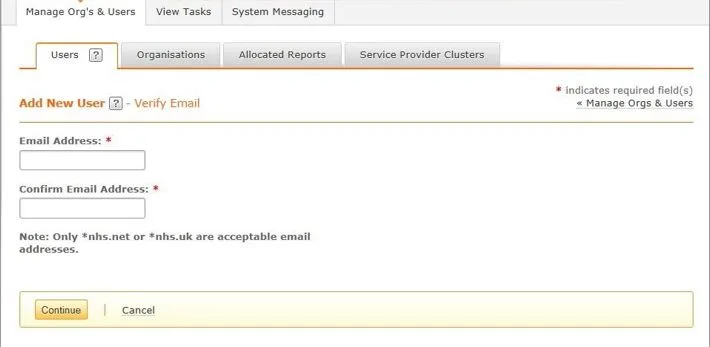
Screenshot from CQRS National showing Manage Organisations and Users tab and Users sub tab

4. Select or tab to the Confirm Email Address field and re-enter the email address associated with the new user.

5. Select the Continue button.

The Add New User–User Information screen displays. Note that the user email address information entered in the previous screen automatically appears. All fields, with the exception of Mobile Phone, are mandatory.

6. Complete all required fields.
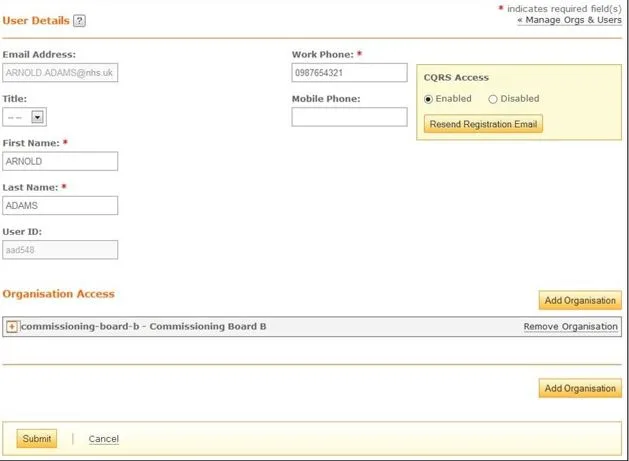
Screenshot from CQRS National showing User Details screen

Adding Organisation and Role

Next, you must link the new user with one or more organisations and specify their role permissions within those organisations.

7. Select the Add Organisation button.

8. If it is not visible, you can use the Search By filter to quickly find the organisation that is to be associated with the new user.

9. Select the checkbox next to the organisations that you wish to link to the new user.

10. Select the Submit button. An expanded view of the chosen organisation is displayed. Available CQRS roles can be viewed on this screen.
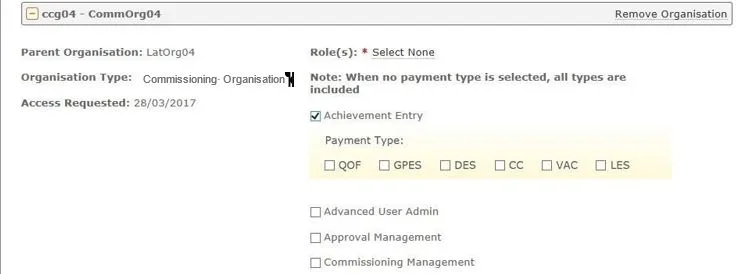
Screenshot from CQRS National showing available CQRS Roles

11. Select the relevant checkboxes next to the roles to be allocated to the new user.

NOTE: Each role expands to reveal payment-type capabilities. When you leave all Payment Type boxes unchecked, the user has access to all Payment Types for that particular role.

12. If relevant, select the checkbox next to the organisation’s Service Provider Cluster(s) to limit the user’s access within that organisation.

Reference Job Aid “Restricting User Access Using a Service Provider Cluster” for additional information on assigning a user to a Service Provider Cluster.
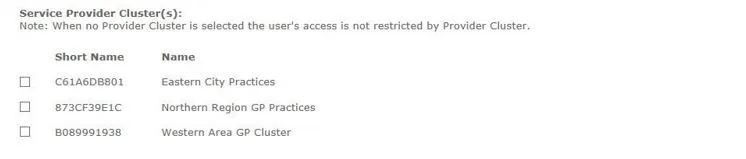
Screenshot from CQRS National showing Service Provider Clusters

13. Select the Submit button. CQRS displays a message confirming that you have successfully added the new user.

Removing Organisation Access for a User

Remember, you cannot delete a CQRS user. Removal simply means that you revoke any or all links to organisations. If the user no longer has responsibilities within CQRS, you can disable their access to the system.

  1. From the CQRS Home screen, select the Administrative Tasks tab.
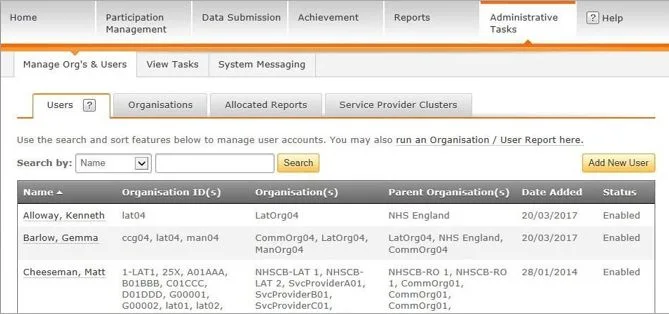
Screenshot from CQRS National showing administrative tasks tab

NOTE: CQRS displays current users, their organisation and the date they were added. If the user name is not displayed, use the Search By filter to locate them.

2. Select the user name from the display list.

3. To remove access to an organisation, select the Remove Organisation link.
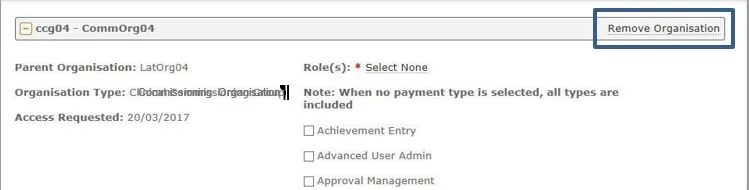
Screenshot from CQRS National showing Remove Organisation link

4. Select the Submit button.

CQRS displays a message confirming that you have successfully removed user access to the chosen organisation.

If the user no longer has any CQRS responsibilities, you will also need to disable their access to the system. If this is the case, continue with the steps described below.

Disabling a User Account

  1. In the upper right corner of the User Details screen, select the Disabled radio button.
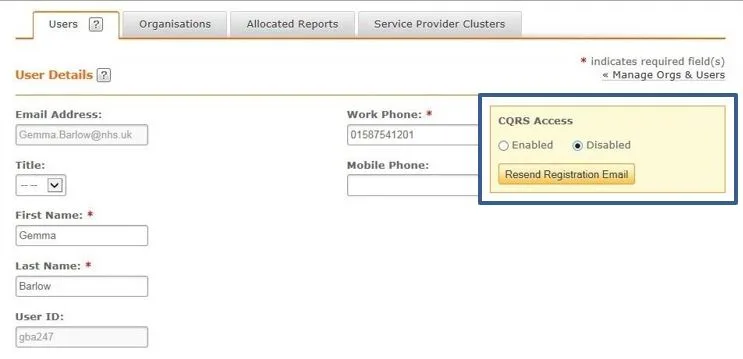
Screenshot from CQRS National showing CQRS Access buttons

2. Select the Submit button.

CQRS displays a message confirming that you have successfully disabled the user’s CQRS access.
Non-urgent advice: Need help?

If you need help with CQRS, you can log a call with the service desk. Please email: support@cqrs.co.uk or call 0330 124 4039.

User Roles in CQRS National

This job aid describes the steps required to check the user roles you have on CQRS. It also describes the responsibilities of each role.

Note: The data that appears in this job aid is for training purposes only and does not represent actual data.

Checking User Roles

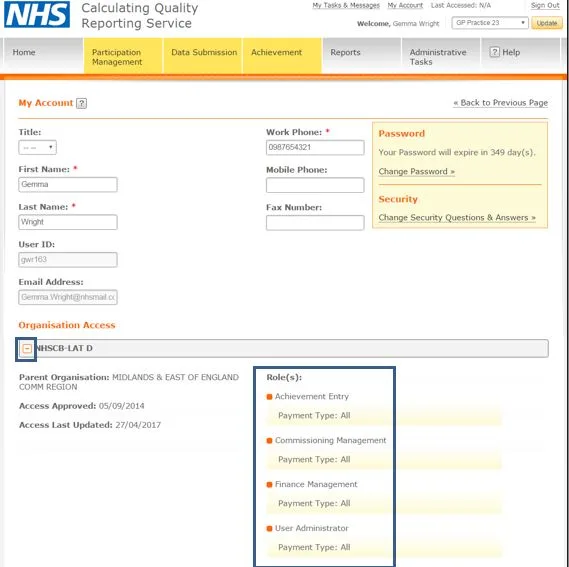
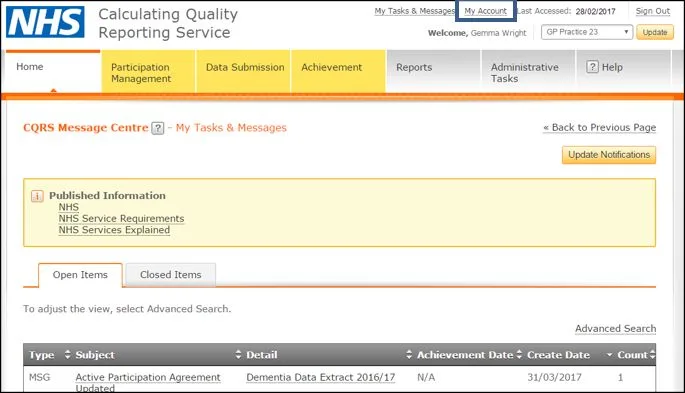
  1. You can check which user roles you are currently assigned by going to My Account from the top of the CQRS window.
Screenshot from CQRS National showing My Account tab top right of page

2. Expand the organisation you are assigned to, to see the role(s) you have been assigned.

Screenshot from CQRS National showing Organisation Access and user roles assigned

User Role Responsibilities

Advanced User Administrator

Training Module: Module 10 (CQRS Administration)

Commissioning Organisation (Area Team)

This role is for setting up and managing user access on CQRS.

A user with this role can manage users for both the Area Team and all the GP practices administered by the Area Team.

Service Provider (GP practice)

Not applicable

User Administrator

Training Module: Module 10 (CQRS Administration).

Commissioning Organisation (Area Team)

This role is for setting up and managing user access on CQRS.

A user with this role can manage users for the Area Team only.

Service Provider (GP practice)

This role is for setting up and managing user access on CQRS.

A user with this role can manage users for the GP practice only.

Finance View*

Training Module: Module 9 (Running Pre-defined Reports)

Commissioning Organisation (Area Team)

This role allows users to view the achievement for QOF, DES, and other supported Quality Services of all the GP practices administered by the Area Team.

Service Provider (GP practice)

This role allows users to view the achievement for QOF, DES, and other supported Quality Services for the GP practices.

View*

Training Module: Module 9 (Running Pre-defined Reports)

Commissioning Organisation (Area Team)

This role allows users to view points (but not pounds) achievement for QOF, DES, and other supported Quality Services of all the GP practices administered by the Area Team.

Service Provider (GP practice)

This role allows users to view points (but not pounds) achievement for QOF, DES, and other supported Quality Services for the GP practices.

Achievement Entry*

Training Module: Module 6 (Entering Achievement Data Manually)

Commissioning Organisation (Area Team)

This role allows users to manually enter achievement data for the GP practices administered by the Area Team.

Service Provider (GP practice)

This role allows users to manually enter achievement data for the GP practice where the data is not being supplied by GPES.

Commissioning Management*

Training Module: Module 4 (Participation Management for Commissioning Organisations)

Commissioning Organisation (Area Team)

This role allows users to commission QOF, DES, and other CQRS-supported Quality Services from the GP practices administered by the Area Team.

Service Provider (GP practice)

Not applicable

Service Management*

Training Module: Module 5 (Participation Management for Service Providers)

Commissioning Organisation (Area Team)

Not applicable

Service Provider (GP practice)

This role allows users to accept the Area Team offers of the QOF, DES, and other CQRS-supported Quality Services for the GP practice.

Declaration Management*

Training Module: Module 7 (Achievement and Payments for Commissioning Organisations)

Commissioning Organisation (Area Team)

Not applicable

Service Provider (GP practice)

This role allows users to confirm that their GP practices achievement for a Quality Service recorded on CQRS is correct and can be used for payment.

Approval Management*

Training Module: Module 8 (Achievement and Payments for Service Providers)

Commissioning Organisation (Area Team)

This role allows users to confirm that the achievement for a Quality Service recorded on CQRS for a GP practice administered by the Area Team is correct and can be used for payment.

Service Provider (GP practice)

Not applicable

Finance Management*

Training Module: Module 8 (Achievement and Payments for Service Providers)

Commissioning Organisation (Area Team)

This role allows users to confirm that a payment should be made for a Quality Service to a GP practice administered by the Area Team.

Service Provider (GP practice)

Not applicable

Supervisor

Training Module: Module 10 (CQRS Administration)

Commissioning Organisation (Area Team)

This role allows a user to see all the outstanding CQRS tasks and messages for their Area Team.

Service Provider (GP practice)

This role allows a user to see all the outstanding CQRS tasks and messages for their GP practice.

Organisation Administrator

Training Module: Module 10 (CQRS Administration)

Commissioning Organisation (Area Team)

This role can create and update organisations for descendant organisations.

This role controls creating Service Provider Clusters and Allocated Report access.

Service Provider (GP practice)

Not applicable

*These roles can be restricted by the Payment Type (for example QOF, DES).

Non-urgent advice: Need help?

If you need help with CQRS, you can log a call with the service desk. Please email: support@cqrs.co.uk or call 0330 124 4039.