Completing your user registration and signing in to CQRS National
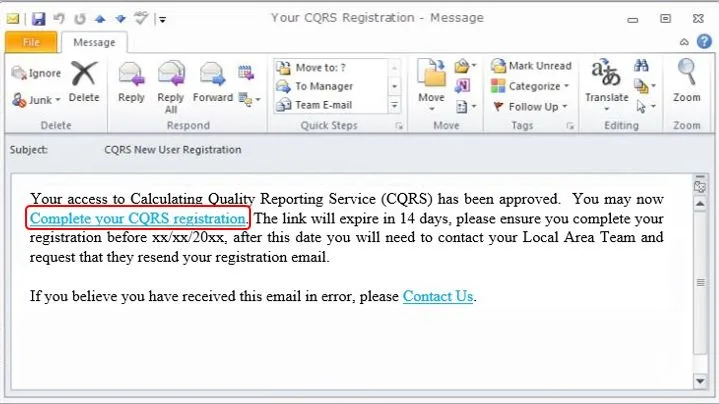
After your CQRS User Administrator has set you up on the system, you will receive an automated email containing a link directing you to the CQRS Registration screen. If you don’t receive the automated email, please inform your CQRS User Administrator so the automated email could be generated for you. From here you must complete your user registration and create a password. This Job Aid provides you with the basic steps required to access and sign in to CQRS for the first time.
Completing your user registration
- Open the link provided in the automated email
2. When the CQRS Registration Screen opens, in the Password textbox, type a password of your choice.
NOTE: A valid CQRS password must meet the following criteria:
- It must be at least eight characters long.
- It must contain at least three of the following categories: one uppercase (A-Z) letter, one lowercase (a-z) letter, one digit (0-9) and one non-alphanumeric character (e.g. £,%,@)
- It must not contain all or part of your user account name.
- It must not contain any spaces.
IMPORTANT: Registration is a two stage process requiring you to create a new password and answer three security questions.
CQRS Registration Screen
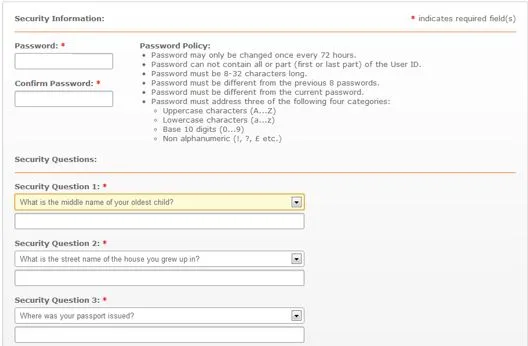
3. In the Confirm Password textbox, re-type your password.
4. In the Security Question 1 drop-down, select your preferred question (e.g., What city were you born in?)
NOTE: Each security question requires you to select from a number of choices. Make sure you remember your answers as you will need to provide them if you forget your password.
5. In the Answer textbox, type your answer.
6. Repeat Steps 4 and 5 for the two remaining Security Questions.
7. Click Submit.
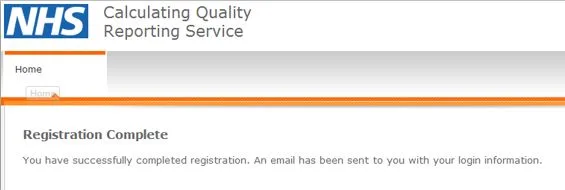
The Registration Complete window opens, confirming you have successfully registered. It also triggers an email containing your CQRS sign in details.
Signing in to CQRS National
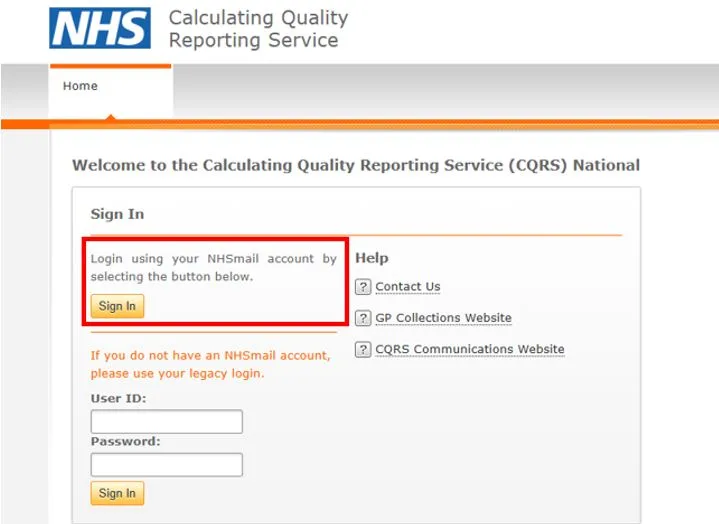
8. Click www.cqrs.nhs.uk to access the CQRS Sign In screen.
Note: As this is a new account, the user will only be able to log in through the NHSmail account
Follow the below steps to log in with your NHSmail account:
- From the CQRS Sign In screen, under the Login using your NHSmail account by selecting the button below command, click Sign In.
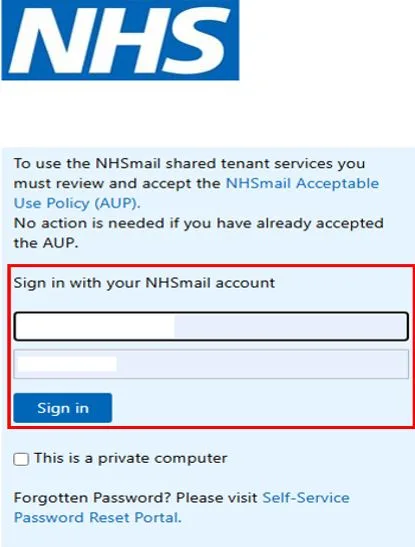
- On the NHSmail window that opens, in the Sign in with your NHSmail account textbox 1, type your NHSmail address.
- In the Sign in with your NHSmail account textbox 2, type your password. Note: remember that your password is case sensitive.
9. Click Sign In
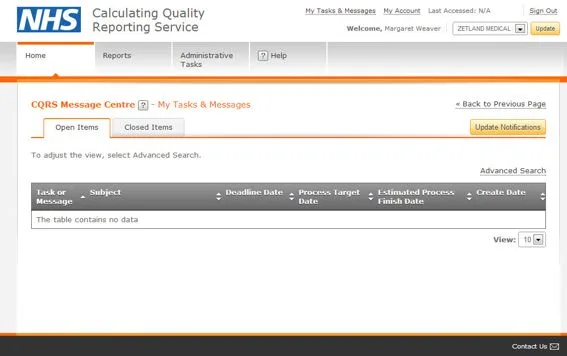
The CQRS Home screen opens.